jira.issue.editable: Lock Closed Issues in Jira
 Software Testing Mentor and RCV Academy

Use the jira.issue.editable status property to lock closed Jira issues. Setup steps, related properties, and the automation catch QA teams miss.
Day 1. A tester verifies the fix and closes the bug.
Day 30. Someone bulk edits a batch of work items and changes its priority.
Day 60. A developer cleaning up old tickets edits the description.
Day 90. An auditor asks what the bug looked like when it was signed off. Nobody can say for certain.
None of those edits were malicious. Jira simply lets anyone with edit permission change a work item in any status, including Done. If closed means closed in your team, you need to tell Jira so. One status property does it, with no apps and no scripting.
What jira.issue.editable does
Workflow properties are small key and value settings you attach to a status or transition. They change how Jira behaves in that one place. Atlassian's page on using workflow properties describes jira.issue.editable as the property that controls whether a work item can be edited while it sits in a particular status.
It takes one of two values:
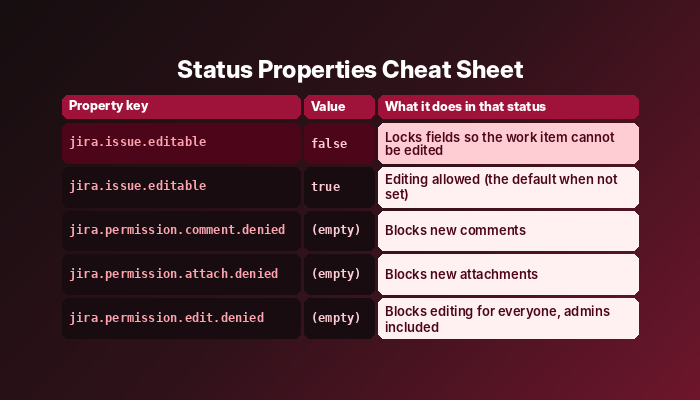
- false turns editing off in that status. Atlassian notes this is often used on a final status.
- true keeps editing on, which is also how Jira behaves when the property is not set at all.
So the typical setup is simple: add jira.issue.editable = false to Done, Closed, Won't Do, or whatever your final statuses are called. Work items in those statuses become read only. If someone needs to change something, they move the work item out of the locked status first, which leaves a clear trail in its history.
Why bother? Release notes, defect trend reports and audit evidence all read from closed work items. If those items keep changing after the fact, last quarter's report quietly stops matching last quarter's data, and nobody notices until someone asks a hard question.
The same Atlassian page carries an honest warning: some workflow properties can cause bugs, and if something breaks after you add one, try removing it. That is a good reason to test on one workflow before rolling the property out everywhere.
How to add it in the workflow editor
Atlassian's article on adding a workflow property gives the current steps:
- In a company managed space, go to Settings, then Work items, then Workflows. Find the workflow, open the More actions menu and choose Edit.
- Select the final status in the diagram, for example Done.
- In the details panel, select the add icon next to Properties and choose to add a new property.
- Enter
jira.issue.editableas the key andfalseas the value. - Save the property, then select Update workflow.
That last step matters. Updating the workflow applies the change to every space that uses it, so check which spaces share the workflow before you publish. Repeat the steps for every final status in the workflow, not just Done, or work items closed as Won't Do stay editable.
Here are the related properties worth knowing about.
What the lock does not cover
jira.issue.editable is about editing the work item. A few related behaviours need their own attention.
Comments. Atlassian lists a separate property for blocking comments, jira.permission.comment.denied with an empty value. Add it to the same status if you want no new comments on closed work. Be aware of one side effect: with comments denied, the comment box also disappears from transition screens, so a reopen screen that asks for a reason will lose its comment field.
Attachments. New attachments have their own property too, jira.permission.attach.denied. Use it if screenshots or logs added after sign off would confuse your audit trail.
Administrators. Atlassian describes jira.permission.edit.denied as blocking editing for everyone, admins included. If your goal is a hard lock with no exceptions, that is the stronger option. Either way, test what your admin accounts can still change before you promise anyone a fully frozen record.
Automation. This one catches teams out. An Atlassian knowledge base article on automation and jira.issue.editable explains that automation cannot override the property, so rules that try to edit a locked work item fail. The audit log shows messages such as "No fields or field values to edit for work items". If a rule needs to stamp a field on closed work, move that edit onto the transition into Done as a Perform actions rule, then confirm it works on a sample work item. Atlassian's alternative is to set the property back to true on that status, which defeats the purpose.
A sensible locked status setup for QA teams
Locking Done only works if there is a clean way back out. Here is a setup that holds up well in practice:
- Lock every final status with
jira.issue.editable = false. - Keep a Reopen transition from those statuses, and restrict who can use it to testers and leads with a Restrict transition rule. Reopening becomes a deliberate, visible decision.
- Clear stale fields on reopen, such as Resolution and Fix version, so the next pass starts clean.
- Capture test evidence before the lock. Anything that proves verification, like linked test executions, should be in place before the bug reaches Done. Test management tools such as Xray for Jira keep execution results on their own records, so the evidence stays intact even when the bug itself is locked.
With that in place, a closed bug stays exactly as it was when the tester signed it off, and any change after that point starts with a reopen that everyone can see.
Choose one shared workflow, add the property to its final statuses this afternoon, and try to edit a closed bug yourself. If Jira stops you, the lock works. For a structured path through workflows, properties, schemes and permissions, the Jira Masterclass: Agile Project Management, Administration & AI builds each piece in a live site.
Categories: : Agile Tester